Google Drive is a cloud service that allows users to access and share files online. The service offers people with a Google account the chance to save photos, videos, and other media to the cloud.
While convenient, using Google Drive often leads to a key question for many content creators, businesses, and hobbyists:
Does Google Drive compress my photos and videos by default?
The simple answer is no. Google Drive does not reduce the resolution of images or videos to conserve storage on its servers. Yet, the quality of files can appear different in some situations.
Below, we explain what this means for users and describe a quick test to ensure the original file quality is preserved.
How Google Drive Stores Data
Google Drive supplies virtual storage space to billions of people worldwide. Drive lets users collaborate with others and synchronize files across multiple devices. It is important to note that Google Drive is a hosting service at its core. Google Cloud Platform (GCP) provides the actual infrastructure for the tool using an object storage system.
This distinction is vital because it means Google Drive must interact with a separate service to fulfill requests.
As a result, Google Drive might show a downscaled version of the file. However, the fuzzier thumbnail is misleading. That effect exists because the Drive web interface displays a lower-resolution preview to improve performance within the browser. The uploaded data still resides on Google’s servers as a byte-for-byte replica of the original file.
Users receive the full-sized file upon downloading it from Google’s cloud service.
Therefore, Google Drive does not compress photos or videos, even if they appear to have lower quality in web browsers.
How To Verify Compression in Google Drive
Resolution is a crucial factor for digital media pros. For good reason. That makes it essential to learn how Google Drive handles compression.
The following tests give users confidence that copies saved to the cloud are identical to files on local storage.
File Size Comparison
A simple way to check for compression is to compare the original file with the downloaded version from Google Drive.
To compare file sizes:
- Right-click the file before uploading it to Google Drive.
- Select Properties on Windows or Get Info on macOS.
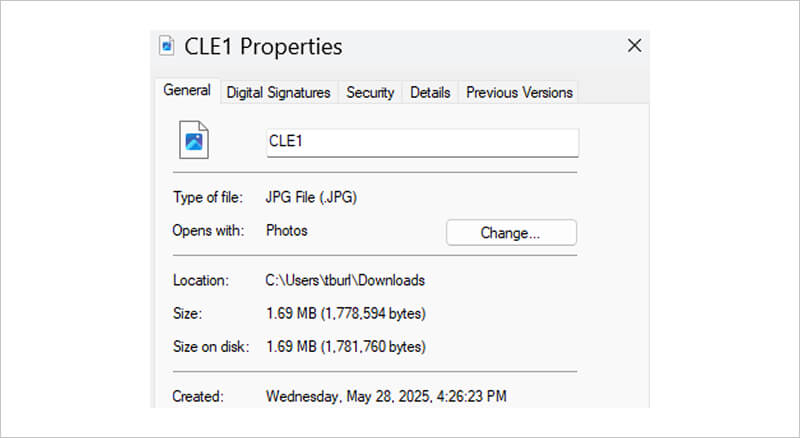
- Note the file size in bytes.
- Upload the file to Google Drive via a web browser or desktop client.
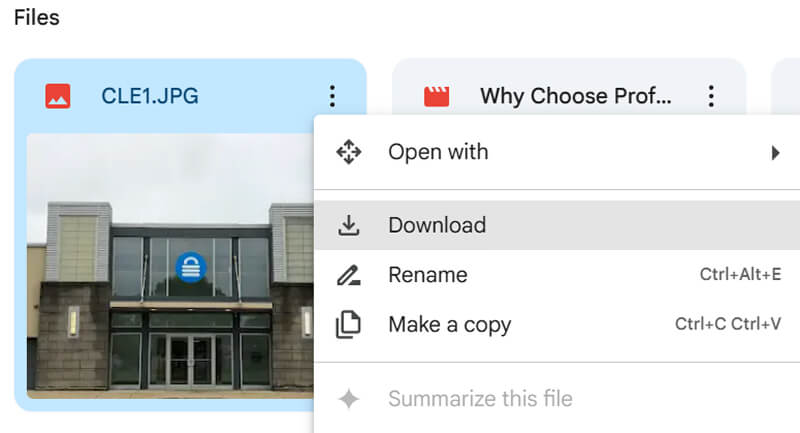
- Select Download in the Drive interface or sync the file back to the local folder.
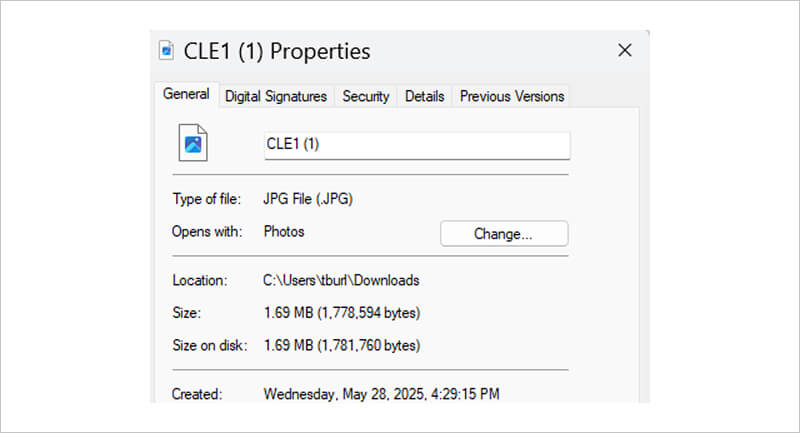
- Check the downloaded file’s size using the same approach as Step 2.
If the bytes match, then Drive did not compress your file. A different file size likely indicates a hidden conversion from a mobile app or third-party tool.
Resolution and Frame Rate Checks
You can also inspect a video file to determine if Google changes its properties.
This method requires media player software to view codec details. VLC is a free, open-source media player that shows codec info and works across all major platforms.
To check the resolution and frame rate:
- Open the video in a media player.
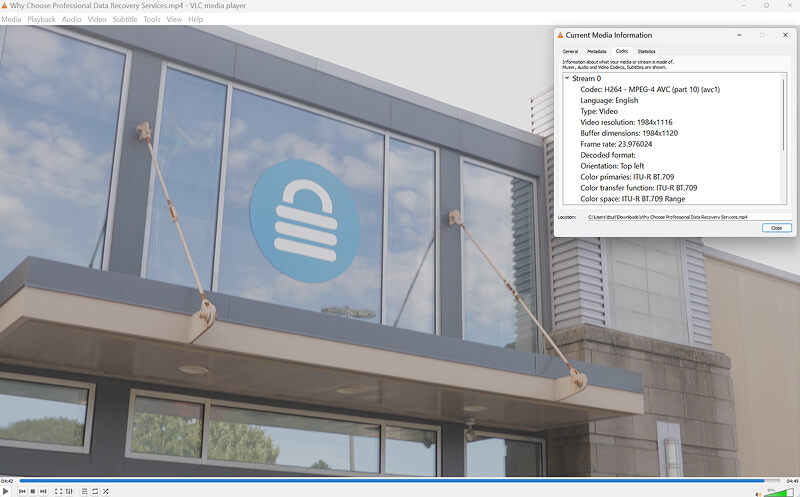
- Check the pre-upload resolution and frame rate in the program. (Tools > Codec Information > Codec in VLC.)
- Upload the video to Google Drive.
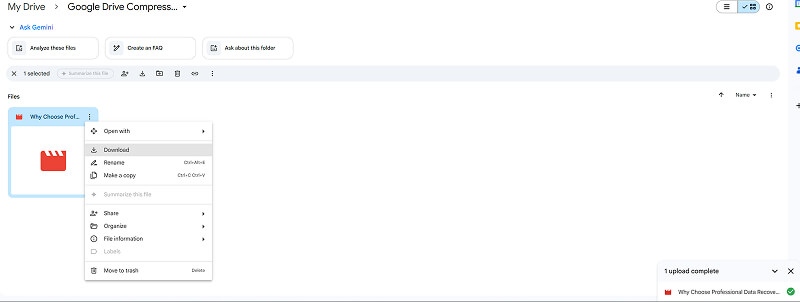
- Download the file from Google Drive and check the codec details.
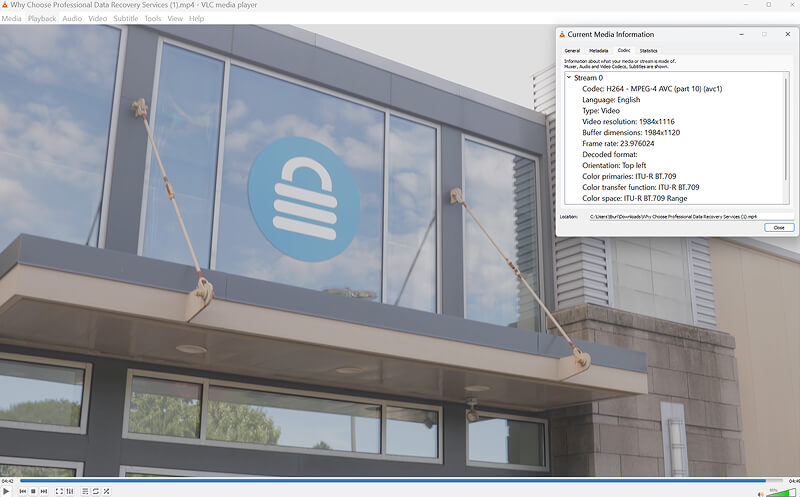
- Confirm that the resolution and frame rate match the original file.
An unchanged resolution and frame rate mean that Google Drive did not downscale the video. Lower metrics suggest recompression and warrant further review.
Best Practices To Ensure High-Resolution Media
Here are some tips to ensure high media quality when using Google Drive.
- Note that the web interface may display a lower-res thumbnail to improve browser speed.
- Download the file from Drive or sync the desktop client for access to the original image or video.
Do not right-click and save the image from the preview pane.
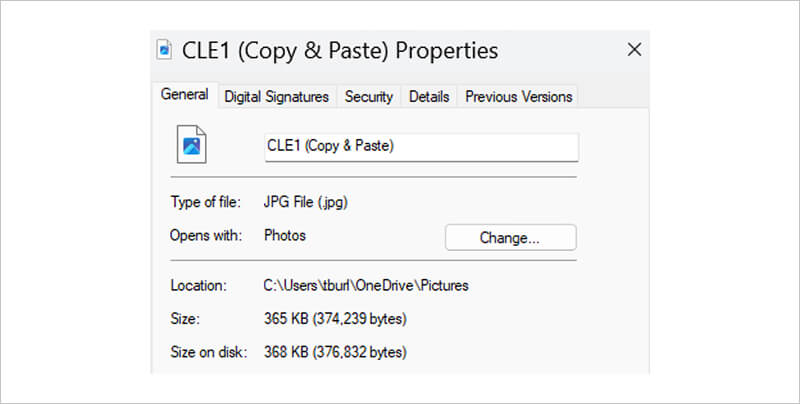
As you can see, the bytes of the preview are much lower.
Edge Cases
There are a few edge cases where using Google Drive could result in a compressed photo or video.
First, the automatic backup feature within the Google Photos app might downscale an image before sending it to Drive. Verify that the backup settings are configured to maintain the original quality.
In addition, third-party tools and other integrations can trigger compression or a format change. For example, embedding a file from Drive into a Google Doc can result in a low-res photo or video. Always download the relevant file from Drive instead of exporting it to another service.
These cases account for most instances when compression occurs within Google Drive.
Google Drive Preserves Your Original Files
Google Drive does not compress photos or videos despite showing scaled-down previews in browsers. A fuzzier appearance is often caused by a temporary resizing to optimize web performance. The original file still exists on Google Cloud Platform as uploaded. This design enables users to access a byte-for-byte replica of the image or video by downloading it directly from Drive. And our simple, step-by-step approach to testing Drive’s compression behaviour allows for complete confidence.
On occasion, other services may downsample files before they reach Google Drive. However, you can fix the issue by adjusting settings within the right app.
In the end, Google Drive is a useful service for people looking for cloud storage without sacrificing media quality.
Secure Data Recovery is the leader in professional data recovery services. Our certified engineers specialize in restoring data regardless of storage device, failure mode, or file type. We offer free quotes and a o Data, No Recovery Fee as part of our standard service. Call 800-705-3701 or request help to start your case and reverse data loss.
Frequently Asked Questions
Does Google Drive compress files for other people with access?
No. Sharing access to a file does not affect data stored on Google Cloud Platform. Anyone with a link can download a byte-for-byte copy of the uploaded file.
How does Drive differ from Google Photos?
Google Drive is a file-hosting service that saves data to the cloud. Google Photos is a similar service that is optimized for images and video. The platforms share the same storage quota. Google Photos does apply compression and downsampling techniques to conserve storage space. However, users can choose to store files at their original fidelity if they wish.
Is there a way to compress files in Google Drive to save space?
No. You will need to use Google Photos to compress images or videos and then replace the original files in Drive. Selected files are compressed to the zip format. Do not overwrite important data stored in Google Drive without a valid backup.